User Guide
Create professional ID photos in simple steps
Comparison of ID Photo Methods
Ramune AI ID Photo combines high quality, low price, and convenience.
| Method | Cost | Time | Quality | Convenience | Retakes | Reprint |
|---|---|---|---|---|---|---|
Ramune AI Photo (L Size) Recommended | 200 JPY + 30 JPY/Sheet | ~3 mins | High (AI Enhanced) | Anywhere, 24/7 | Unlimited (Free) | Anytime at convenience stores |
| Photo Booth | 800 ~ 1,000 JPY | 10 mins+ | Standard | Go to location | Limited | Not available |
| Photo Studio | 3,000 JPY+ | Days+ | Highest | Reservation needed | Depends on plan | Extra reservation needed |
Upload Photo
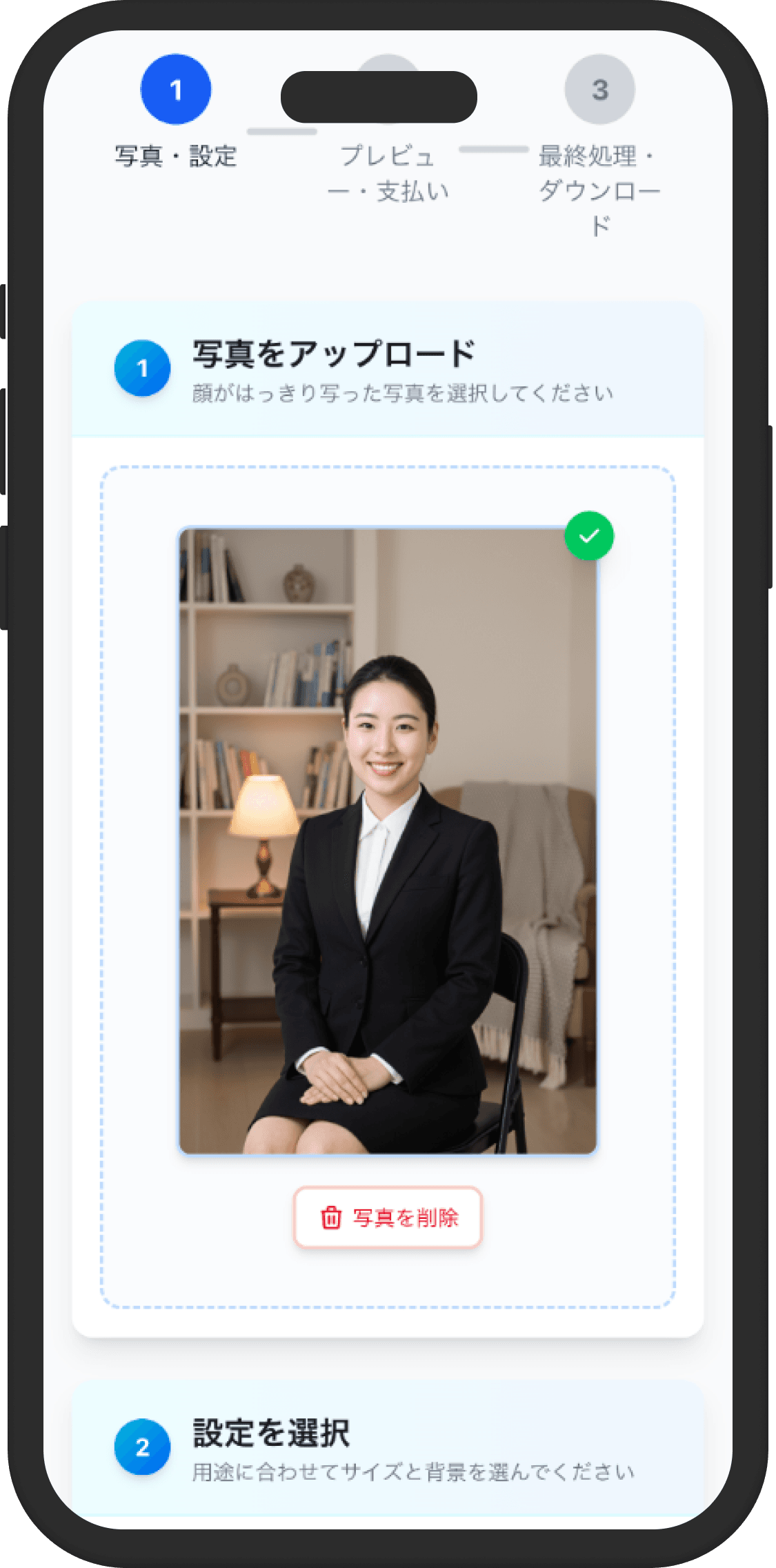
Upload a photo of your face taken with a smartphone or camera.
Photography Tips
- Shoot in a bright place so that your entire face is clearly visible
- Face forward with a neutral expression or slight smile
- Remove glasses and hats (follow regulations)
- Simple walls are recommended for the background (will be automatically removed)
Select Size & Background Color
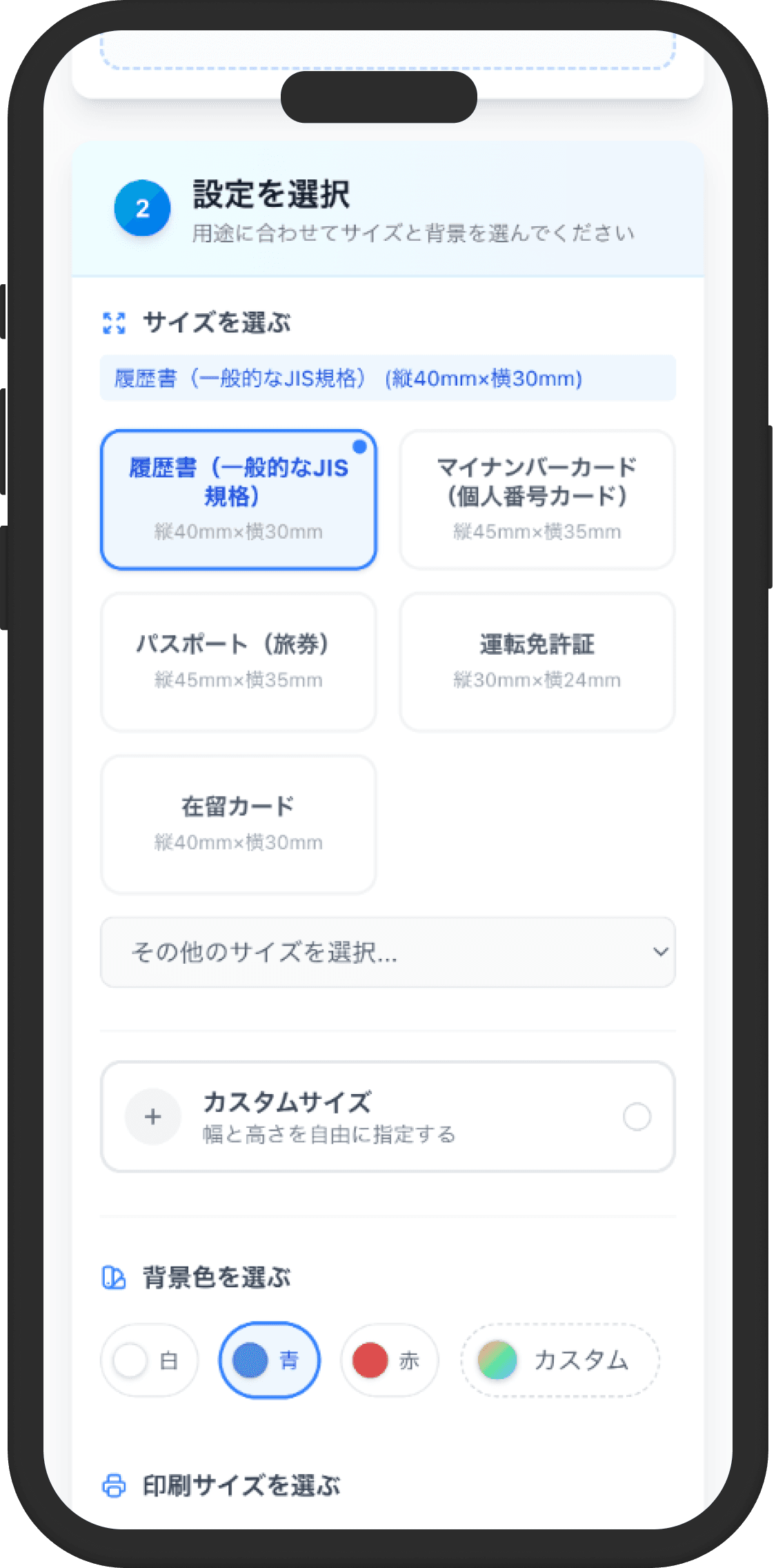
Choose ID photo size, background color, and print size according to your purpose.
Wide Range of ID Photo Sizes
Official IDs, national exams, foreign visas — 105 specs + custom sizes supported
- Official documents (My Number Card, Passport, Driver's License, etc.)
- Resume and job hunting
- Certifications and exams (Eiken, Bar Exam, Nurse, CPA, etc.)
- Visas for various countries (China, Korea, India, Singapore, Russia, etc.)
- Custom size (freely specify)
Selectable Background Colors
- White (for resumes, ID cards, etc.)
- Blue (for passports, visas, etc.)
- Red (for specific application documents)
- Custom (freely select color)
Print Size
- • L size (127mm × 89mm) compatible
- * 2L size coming soon
AI Automatic Processing
AI automatically detects faces and removes backgrounds. It also automatically suggests the optimal cropping area based on ID photo standards.
AI Processing
- High-precision face detection using deep learning
- High-quality background removal using advanced AI models
- Optimal cropping area suggestions based on ID photo standards
Once processing is complete, the photo with the background removed and the AI-suggested cropping area will be displayed.
Adjust Cropping Position
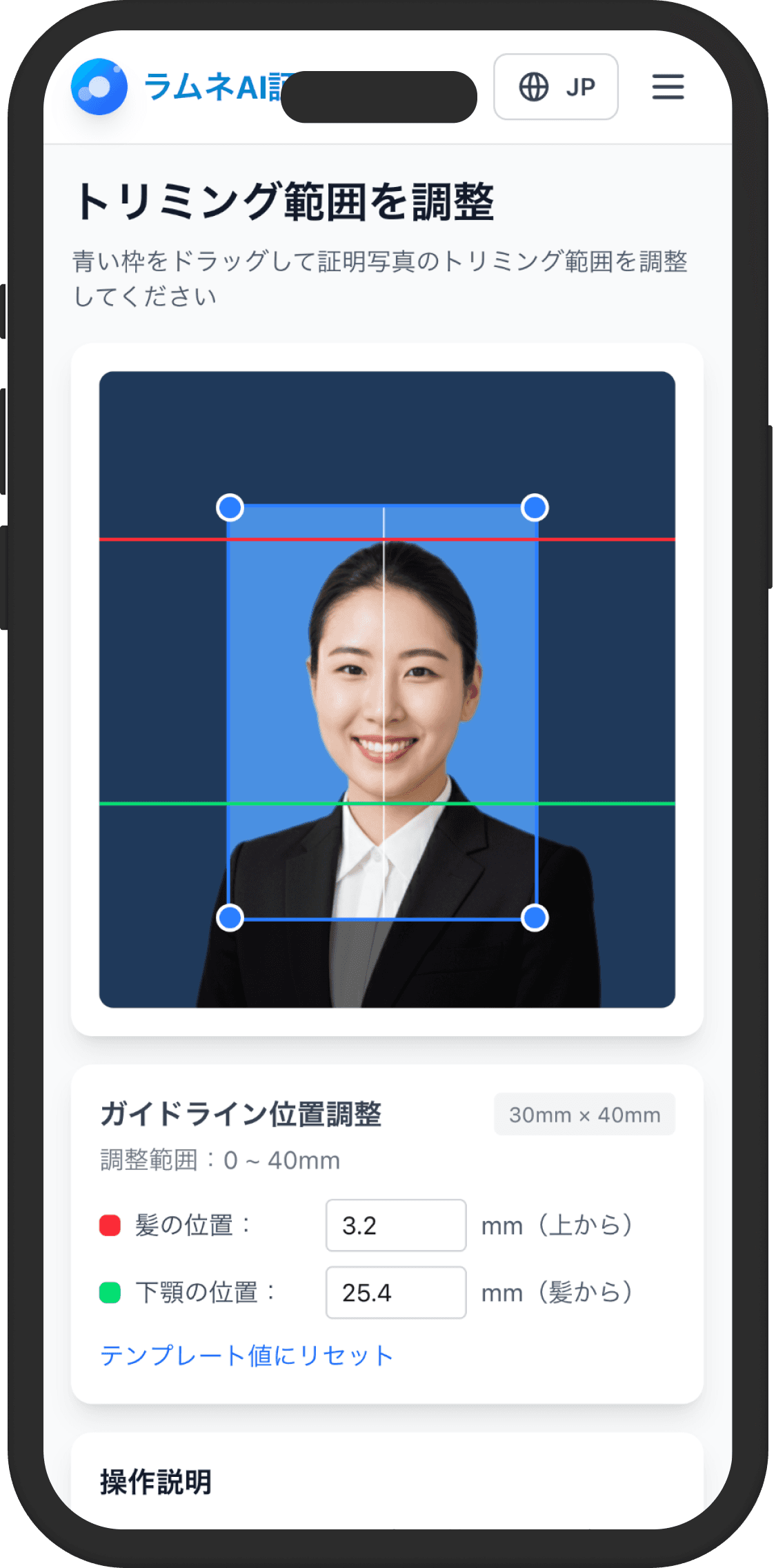
You can freely adjust the AI-suggested cropping area by dragging. Adjust the face position and size to the optimal state.
Adjustment Features
- Adjust position and size by dragging with mouse
- Automatically adjust aspect ratio
- Multi-axis guidelines (horizontal + vertical, symmetric) — adjust face center, width, top, and chin with 0.1 mm precision
- Choose between original photo or skin-smoothed (beautified) version
Once adjustments are complete, proceed to payment. After payment is completed, the selected background color will be applied and the final print sheet will be generated.
Payment
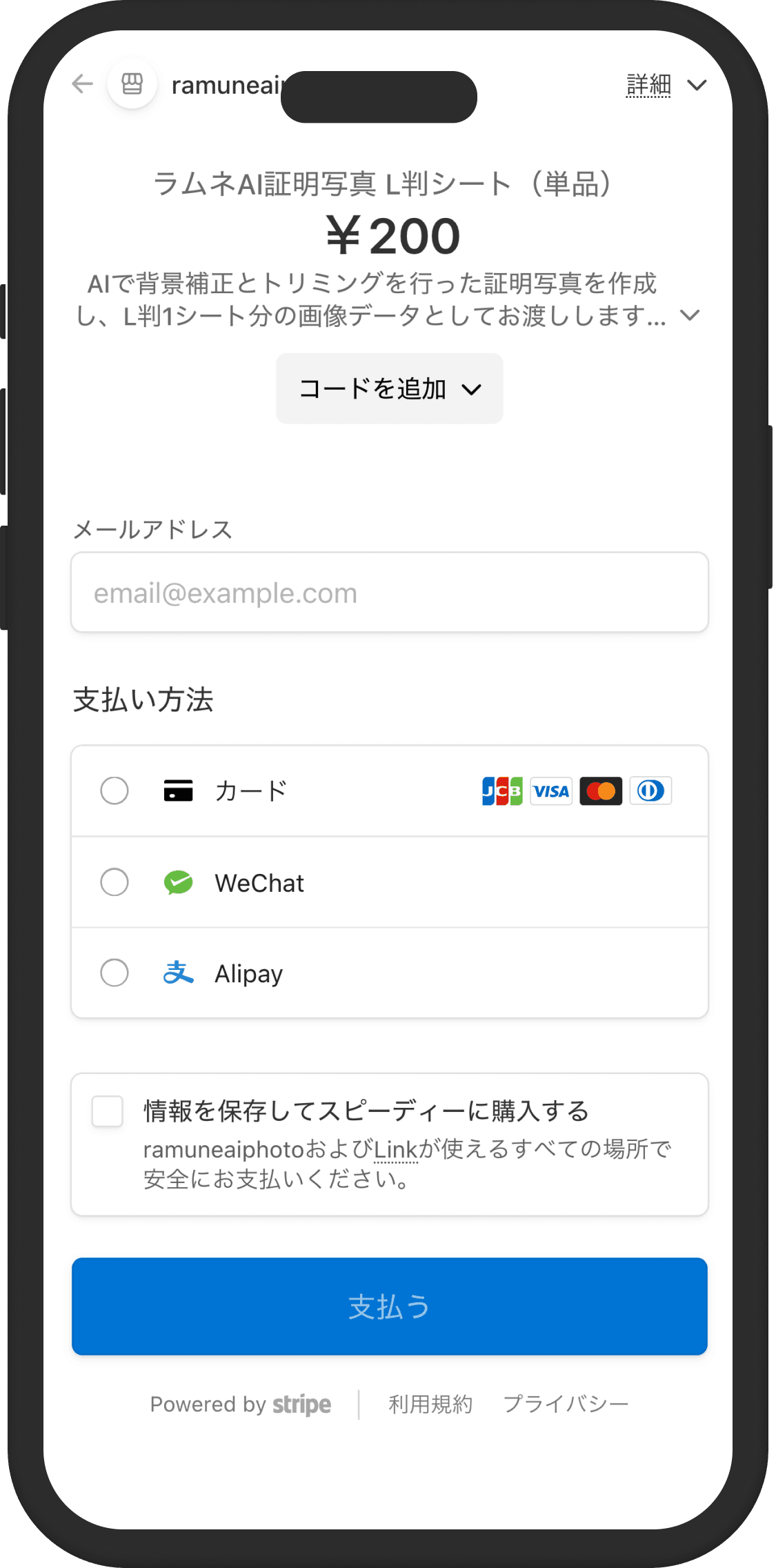
Complete processing with secure Stripe payment. Compatible with credit cards, Apple Pay, and Google Pay.
Secure Payment
- Secure with world-standard Stripe payment
- Credit card, Apple Pay, Google Pay supported
Download Print Sheet
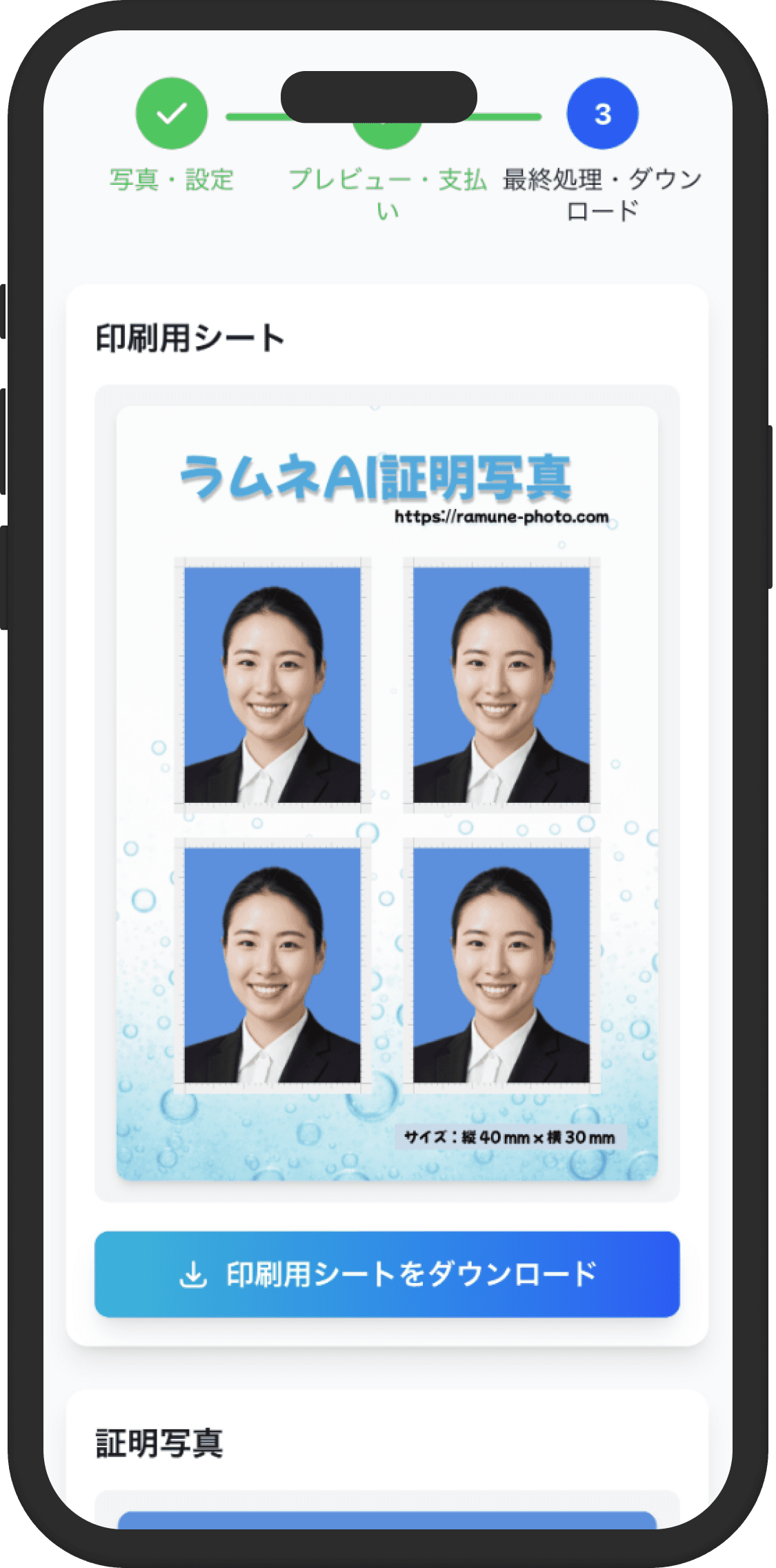
When final processing completes, you receive a print sheet, a single ID photo, and a QR code + user number for convenience-store printing.
Print Sheet
Layout optimized for L size photo paper (127mm × 89mm)
- Optimal placement of multiple ID photos
- With cut marks
- Can be printed at home or convenience stores
ID Photo
Single ID photo that can be used for online applications and SNS
- Generated in selected size
- High-resolution PNG format
- Compatible with various online applications
QR Code + User Number
For convenience-store print, emailed right after payment
- Delivered to your email immediately after payment
- Scan the QR code at the multi-copy machine
- Type the 8-digit user number as an alternative
Print the print sheet on L size photo paper and cut along the cut marks for use.
Printing
The downloaded "Print Sheet" can be printed at your home printer or at nearby convenience stores.
Print at Home
Prepare L size glossy photo paper and print with printer settings set to "L size" and "Photo paper".
Print at Convenience Stores
Easily print via QR code at the multi-copy machines at Lawson, FamilyMart, Ministop, and Poplar (7-Eleven uses netprint).
How to print at convenience storesTechnical Features
Cutting-edge AI Models
- Target Detection AI:Real-time target detection for fast and accurate face recognition
- Background Removal AI:Latest background removal technology for high-quality results
- Segmentation AI:Accurately recognizes parts and calculates optimal cropping range
Security and Privacy
- Uploaded images are automatically deleted after processing
- All communications are protected with SSL/TLS encryption
- No personal information is stored
FAQ
Q. What kind of photos can I use?
A. You can use any photo taken with a smartphone as long as your face is clearly visible. However, photos taken in a bright place facing the front will produce the best results with high AI accuracy.
Q. Is there an image size limit?
A. Photos taken with standard smartphones or digital cameras are generally fine. Extremely low quality (small) images may not turn out well.
Q. Are uploaded photos saved?
A. No, for security and privacy protection, photos are automatically and completely deleted from the server after processing is complete (after download) or after a certain period of time.
Q. How do I print?
A. Download the generated 'Print Sheet' and print it using the 'L size (Photo Paper)' setting at a convenience store multi-copy machine or your home printer.
References
"Official requirements for passport photos
"Requirements for Japan entry visa photos
"Photo requirements for Residence Card/Status of Residence
"Requirements for My Number Card application photos
"Standards for Driver's License Application Photos (Renewal/Reissuance)
"Standards for International Driving Permit Photos